Desbloqueando Renderizações com IA a Partir do Seu Esboço de Design de Interiores

Pense em um esboço de design de interiores como a linguagem nativa do designer. É aquele desenho rápido e expressivo que coloca as ideias principais de um espaço no papel. Não estamos falando de uma obra de arte perfeita aqui; trata-se de comunicar perspectiva, layout e atmosfera muito antes de tocarmos em qualquer software de renderização. Este desenho simples é o DNA criativo para tudo que vem depois.
Seu Esboço é o Novo Projeto para Design com IA
Por anos, aquele humilde esboço foi nosso recurso preferido para brainstorming e discussão de ideias com clientes. Sempre foi a forma mais rápida de traduzir uma visão em algo tangível. Agora, esse mesmo esboço desenhado à mão se tornou o ponto de partida para criar dezenas de conceitos fotorrealistas em minutos, graças a ferramentas de visualização com IA como MoldaSpace.
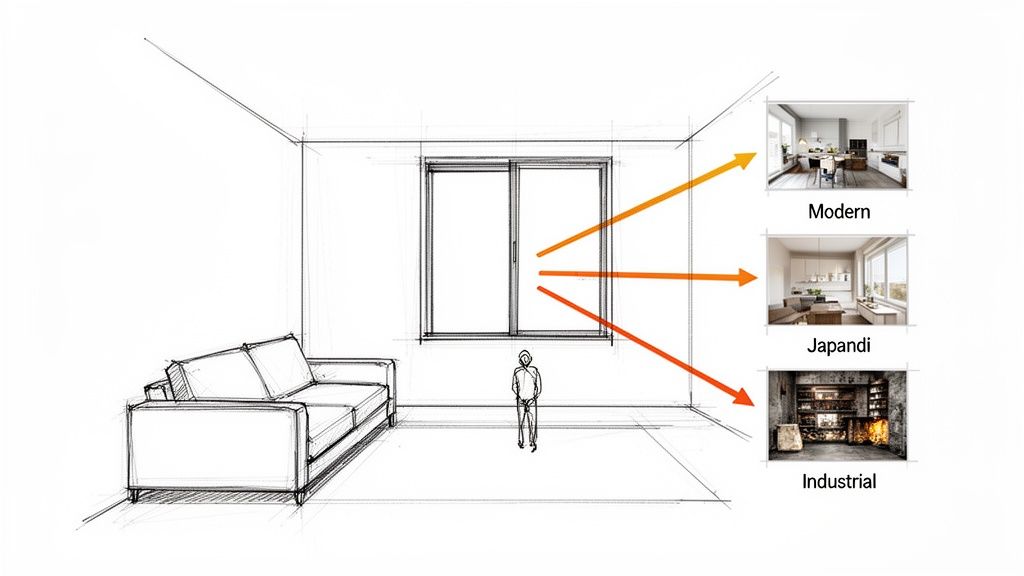
Isso não coloca sua criatividade de lado—na verdade, a potencializa. Seu esboço não é mais apenas uma ideia estática. Em vez disso, é a chave que desbloqueia um processo de design dinâmico, incrivelmente flexível e abre a porta para variações infinitas.
O Poder da Visualização Rápida
Quando você cria um esboço limpo e bem composto, está dando à IA as informações estruturais essenciais que ela precisa para "ver" sua visão. A partir daquele único desenho, você pode instantaneamente gerar múltiplas direções de design. Isso muda completamente o jogo para apresentar ideias e obter aquela aprovação crucial do cliente.
De repente, você pode:
- Explorar Estilos Diversos: Mostrar a um cliente como sua sala de estar fica em Japandi, Industrial ou Mid-Century Modern sem gastar dias criando renderizações manuais para cada um.
- Iterar sobre Materiais: Ver instantaneamente a diferença entre uma lareira de mármore e uma de concreto, simplesmente ajustando seu prompt de texto.
- Capacitar Designers Solo: Isso equilibra o jogo. Designers solo e pequenos estúdios agora podem produzir o tipo de visualizações de alta qualidade que costumavam exigir grandes empresas e equipes dedicadas de renderização.
Isso não é um futuro distante; está acontecendo agora. O mundo do design está abraçando a IA, com taxas de adoção esperadas para saltar de 9 por cento em 2023 para 29 por cento até 2025. Você pode ler mais sobre essa mudança na indústria e ver como os designers estão se adaptando a esses novos fluxos de trabalho.
O objetivo não é mais criar um desenho perfeito. Em vez disso, é criar um desenho estrutural claro que possa se tornar qualquer coisa—dando a você e seu cliente a liberdade de explorar possibilidades que antes eram muito demoradas ou caras para considerar.
Criando um Esboço que a IA Realmente Entenda
Antes de você sequer tocar lápis no papel, precisa entrar em um estado mental diferente. Você não está apenas esboçando para um humano; está criando um projeto visual para uma IA. Um humano pode ver algumas linhas soltas e entender sua intenção artística, mas uma IA como MoldaSpace precisa de instruções claras e inequívocas.
Pense em seu esboço como a estrutura fundamental de um modelo 3D. Se essa estrutura estiver torta, distorcida ou faltando informações-chave, o resultado final será uma bagunça. Nosso objetivo aqui é clareza sobre complexidade. Estamos dando à IA um conjunto sólido de instruções, não uma obra de arte refinada.
Domine a Perspectiva
A perspectiva é, sem dúvida, a parte mais crítica do quebra-cabeça. É o que diz à IA como construir a geometria da sala—onde estão as paredes, o piso e o teto e como se relacionam entre si. Acerte errado e você terá uma imagem plana e distorcida que parece saída de uma casa dos espelhos.
Você tem duas opções principais aqui, e escolher a correta é metade da batalha:
Perspectiva de Um Ponto: Esta é sua escolha para fotos simples e frontais. Pense em enquadrar uma parede de destaque, uma lareira ou a vista do pé de uma cama. É limpo, direto e fácil para a IA processar.
Perspectiva de Dois Pontos: Esta é para quando você está olhando para um canto e quer mostrar duas paredes recuando. Dá um sentido muito melhor de profundidade e espaço, tornando-a perfeita para mostrar como os móveis estão dispostos em uma sala de estar ou cozinha.
Para a maioria das cenas de interiores, uma perspectiva de dois pontos dá à IA mais dados para trabalhar, geralmente resultando em uma renderização mais dinâmica e realista.
Vejo isso o tempo todo: pessoas acidentalmente misturam perspectivas ou têm linhas indo para pontos de fuga aleatórios. Você tem que ser disciplinado aqui. Se as linhas são paralelas no mundo real, elas devem convergir no mesmo ponto de fuga em seu esboço. A consistência é tudo.
Mantenha as Proporções Plausíveis
Seu esboço não precisa ser desenhado com a precisão de um arquiteto, mas a escala dos objetos em relação uns aos outros tem que fazer sentido. Um sofá não pode ter o mesmo tamanho de uma mesa lateral, e uma porta padrão não deveria raspar o teto.
Essas pistas visuais são como a IA entende o que está vendo. Se você desenhar uma poltrona minúscula ao lado de uma janela gigantesca, não se surpreenda quando a IA cuspir uma sala bizarra e cartunesca. Ela está apenas seguindo seu exemplo.
Conforme você desenha, constantemente se pergunte: isso parece certo? Essa mesa de centro está em uma altura realista? Uma pessoa poderia realmente caminhar por aquele corredor? Uma verificação mental rápida pode economizar muitos refazimentos frustrantes.
Finalmente, lembre-se da composição básica. Enquadre o plano para destacar o que é importante. Usar a clássica regra dos terços colocando uma peça-chave—como uma poltrona bonita ou uma obra de arte—ligeiramente fora do centro torna instantaneamente a cena mais atraente. Você não está apenas dizendo à IA o que construir, está dizendo onde olhar.
Um Guia Prático para Esboçar para Renderizações com IA
Tudo bem, vamos chegar à parte divertida: colocar lápis no papel. O objetivo aqui não é criar uma obra-prima para uma parede de galeria, mas produzir um esboço de design de interiores que uma IA possa ler e transformar instantaneamente. Pense menos em floreio artístico e mais em comunicação clara. Quanto mais limpas suas linhas e mais definida sua estrutura, melhor a IA entenderá sua visão.
Imagine que você é um diretor preparando a cena de uma peça. Seu primeiro trabalho é construir o palco. Comece colocando a estrutura principal da sala—as paredes, piso e teto. Quer você use uma régua ou desenhe à mão livre, use traços longos e confiantes para estabelecer a perspectiva. Essas linhas são a base absoluta de seu esboço. Linhas bamboleantes e incertas apenas confundirão a IA, levando a renderizações distorcidas e estranhas.
Uma vez que você tem a "caixa" da sala definida, comece a adicionar os principais elementos arquitetônicos. Estou falando sobre os recursos fixos que não vão a lugar nenhum:
- Portas e Janelas: Marque seu posicionamento e tamanho geral. Sem necessidade de perfeição, apenas indicação clara.
- Prateleiras Embutidas: Bloqueie a forma geral, mas não se perca desenhando cada prateleira individual.
- Lareiras ou Paredes de Destaque: Defina sua forma principal para que a IA tenha um ponto focal claro para trabalhar.
Neste ponto, sua única missão é criar uma estrutura sólida e inequívoca.
Camadas nos Elementos Principais
Com a arquitetura definida, você pode começar a colocar as principais peças de móveis. É aqui que muitas pessoas exageram. Esqueça de desenhar cada perna de uma cadeira ou as alças de um armário. Em vez disso, concentre-se em bloquear as formas geométricas simples de cada item. Um sofá é realmente apenas um grande retângulo, uma mesa de centro é um retângulo mais baixo e mais largo, e uma luminária de piso é basicamente uma linha com um círculo no topo.
Esta quebra visual detalha esse processo de pensamento principal para criar um esboço pronto para uma IA interpretar.
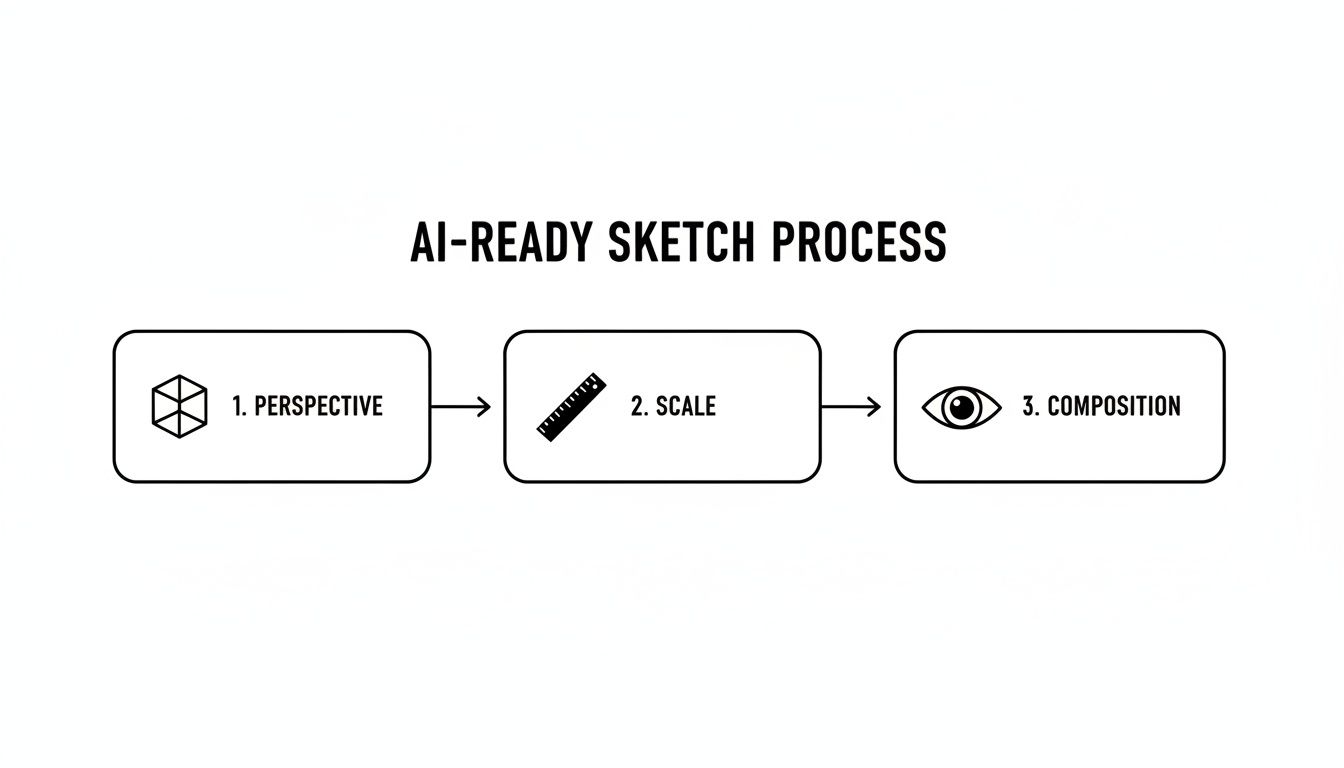
Como você pode ver, estabelecer uma perspectiva clara, garantir que a escala pareça certa e depois refinar a composição geral são os três pilares de um esboço bem-sucedido pronto para IA. Ao pensar desta forma estruturada, você está essencialmente dando à IA um conjunto muito claro de instruções.
Um dos erros mais comuns que vejo é designers adicionando muito detalhe muito cedo. Uma IA não precisa ver padrões de tecido intrincados ou grão de madeira no esboço. Na verdade, ela funciona muito melhor quando você alimenta com formas limpas e depois usa prompts de texto para definir esses materiais e texturas específicas depois.
Indicando Materiais e Anotações
Embora sombreamento artístico pesado seja definitivamente um não-não, você pode usar hachuras simples para sugerir diferentes materiais. Algumas linhas paralelas são perfeitas para indicar piso de madeira, um padrão de hachura simples pode sugerir um tapete, e algum pontilhado leve poderia representar uma superfície de concreto ou pedra. A chave é mantê-lo mínimo. Você está apenas dando à IA uma dica, não um retrato acabado.
Finalmente, você pode querer adicionar algumas anotações simples para clareza, especialmente se o propósito de um objeto não for óbvio em sua forma. Uma seta simples apontando para uma parede com a palavra "Tijolo" ou para uma janela com "Cortinas translúcidas" pode ser incrivelmente útil. Apenas tente manter essas notas escassas e coloque-as nas margens para evitar poluir o desenho real.
A diferença entre um esboço que funciona e um que falha geralmente se resume a esse único princípio: clareza. Você pode ver como essa mentalidade se aplica aos visuais finais em nosso guia sobre renderização de design de interiores. Em última análise, um esboço "bom" para IA é simples, ousado e estruturalmente sólido—o projeto perfeito para criar algumas visualizações verdadeiramente incríveis.
Preparando Seu Esboço para a IA
Seu esboço desenhado à mão é onde a centelha criativa acontece, mas para uma IA ver o que você vê, essa centelha precisa de um caminho digital limpo. O objetivo é transformar seu desenho físico em um arquivo digital que seja cristalino, de alto contraste e livre de qualquer distorção estranha que pudesse confundir a IA. Honestamente, esta etapa é tão crítica quanto o desenho em si.
Pense assim: a IA é um intérprete brilhante mas muito literal. Ela vê linhas e formas, não sua visão artística. Uma sombra sutil da sua mão, um pequeno amassado no papel—estes podem facilmente ser interpretados como uma parede, um móvel ou algum outro elemento bizarro que você nunca pretendeu. Acertar a captura digital é a ponte essencial entre seu conceito e uma renderização deslumbrante e fotorrealista.
Como Colocar Seu Esboço na Tela
Você tem duas formas principais de colocar seu desenho no computador: um scanner de cama plana ou a câmera do seu smartphone. Enquanto tirar uma foto é rápido e fácil, quase sempre recomendo escanear para este tipo de trabalho. Os resultados são muito melhores.
Um scanner oferece luz perfeitamente uniforme de canto a canto. Isso elimina as sombras e pontos brilhantes que são uma batalha constante ao usar um telefone. Esse fundo limpo e consistente é exatamente o que a IA precisa ver—suas linhas e nada mais.
Minha Opinião: Se um scanner não for uma opção e você tiver que usar seu telefone, não apenas tire uma foto rápida. Coloque seu esboço no chão diretamente sob uma luz aérea. Fique bem acima dele, segurando seu telefone o mais paralelo ao papel que puder para minimizar distorção. E seja qual for o caso, desligue o flash—ele cria brilho duro e sombras profundas e confusas.
Aqui está uma rápida análise dos dois métodos para ajudá-lo a decidir.
Comparando Métodos de Captura Digital
| Método | Vantagens | Desvantagens | Melhor Para |
|---|---|---|---|
| Escaneamento | - Iluminação uniforme - Sem distorção - Alto contraste - Clareza superior |
- Requer um scanner - Pode ser mais lento |
Esboços finais e detalhados onde a precisão é fundamental para a IA. Este é o padrão profissional. |
| Fotografia | - Rápido e conveniente - Sem hardware especial necessário |
- Iluminação desigual/sombras - Propenso a distorção de perspectiva - Contraste mais baixo |
Ideação rápida e conceitos em estágio inicial quando você apenas precisa de uma visualização rápida e não se importa com perfeição. |
Em última análise, um scanner é sua melhor aposta para uma renderização impecável, mas uma foto bem tirada pode funcionar em um aperto se você for cuidadoso.
Uma Pequena Limpeza Faz uma Grande Diferença
Uma vez que seu esboço está digitalizado, gastar apenas alguns minutos limpando-o terá um impacto massivo em seus resultados. Você não precisa ser um mago do Photoshop; alguns ajustes básicos são tudo que é necessário.
Esses ajustes simples podem fazer toda a diferença:
- Aumente o Contraste: Isso é inegociável. Seu objetivo é tornar suas linhas o mais próximo possível do preto puro, com um fundo de branco puro. A ferramenta "Níveis" ou "Curvas" na maioria dos softwares de edição (até um aplicativo gratuito como Snapseed) é perfeita para isso.
- Apague a Bagunça: Use uma ferramenta de borracha digital para se livrar de qualquer mancha de lápis, marcas de borracha ou notas manuscritas que você não quer que a IA veja.
- Endireite as Coisas: Se você usou seu telefone, sua imagem pode ter alguma distorção de perspectiva. Use uma ferramenta de correção de perspectiva ou transformação para garantir que todas as suas linhas verticais e horizontais sejam perfeitamente retas.
Este pouco de preparação garante que a IA tenha nada para trabalhar além de seu design limpo e intencional. Você encontrará esse mesmo princípio de começar com uma lousa limpa é crucial em todo o processo de visualização, que exploramos mais em nosso guia sobre os benefícios da renderização baseada em nuvem.
Finalizando Seu Arquivo para MoldaSpace
O último passo é salvar seu esboço polido no formato e tamanho corretos. Plataformas de IA como MoldaSpace são construídas para lidar com arquivos de imagem padrão com eficiência.
Apenas siga essas especificações simples quando salvar:
- Formato de Arquivo: Salve seu arquivo como JPG ou PNG. Ambos são amplamente suportados e oferecem um ótimo equilíbrio entre qualidade de imagem e tamanho de arquivo.
- Resolução: Aponte para uma resolução entre 1500 a 2500 pixels no lado mais longo. Isso é detalhamento mais que suficiente para a IA trabalhar, mas mantém o tamanho do arquivo razoável para um upload rápido e tempo de processamento.
Com um esboço adequadamente digitalizado e limpo, você está entregando à IA o projeto perfeito. Você preparou o palco para uma renderização final que não é apenas impressionante, mas também fiel à sua visão original.
Trazendo Seu Esboço à Vida com MoldaSpace
Tudo bem, você digitalizou seu esboço e está ficando limpo. É aqui que a mágica acontece. Vamos pegar aquele linework simples e transformá-lo em uma renderização fotorrealista, e você ficará chocado com a rapidez com que tudo se junta. Uma ferramenta como MoldaSpace é projetada especificamente para isso—fechando a lacuna entre uma ideia desenhada à mão e um visual pronto para cliente.
Todo o processo é incrivelmente intuitivo. Uma vez que você carrega seu PNG ou JPG, a IA instantaneamente começa a trabalhar, analisando a estrutura de seu desenho: a perspectiva, onde você colocou as grandes peças de móveis e o layout geral que você estabeleceu. Seu esboço se torna o projeto fixo, a base inegociável para cada ideia de design que você está prestes a explorar.
A Arte do Prompt
Seu esboço diz à IA o que e onde. Seu prompt diz como. Esta é sua chance de ser um diretor de arte. As palavras que você escolher ditarão o estilo, materiais, iluminação e humor. Quanto mais específico você for, mais perto a IA chegará do que está em sua cabeça desde o início.
Um ótimo prompt geralmente tece três coisas:
- Estilo & Humor: Vá além de rótulos básicos. Em vez de apenas "moderno", seja descritivo. Pense em "Uma sala de estar Japandi serena, cheia de tons de madeira quente e móveis minimalistas."
- Materiais & Texturas: Destaque acabamentos específicos para os itens-chave em seu desenho. Por exemplo, "Dê à poltrona um tecido bouclé texturizado e às paredes uma cal matte suave."
- Iluminação & Atmosfera: Descreva a luz. Como ela entra na sala? Que sentimento ela cria? Tente algo como, "Luz da hora dourada lançando sombras longas e dramáticas da grande janela panorâmica."
Esta imagem é um exemplo perfeito de como um único esboço pode gerar mundos de design completamente diferentes apenas mudando o prompt.
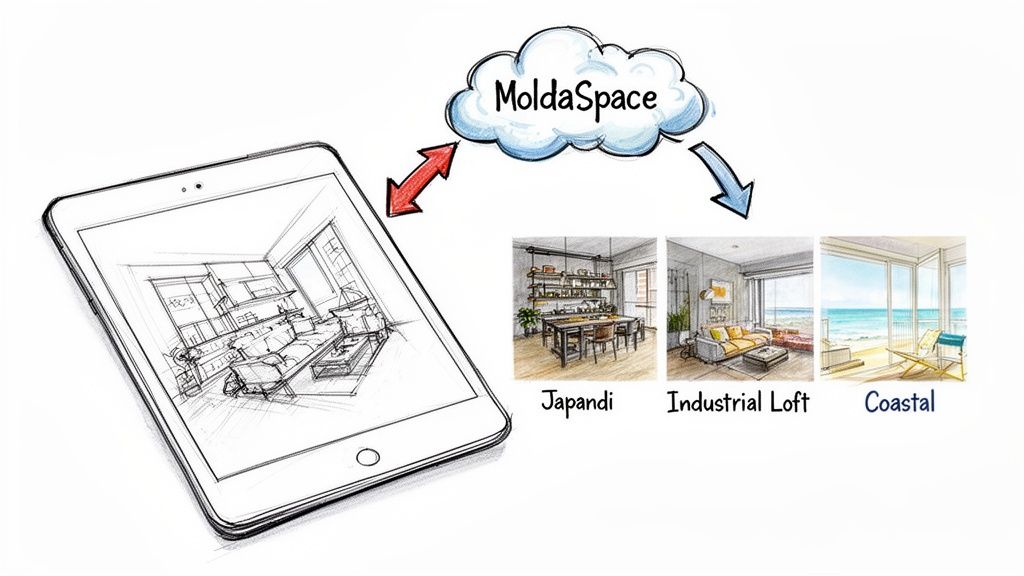
Veja como a estrutura da sala—as paredes, a janela, o posicionamento principal de móveis—nunca muda? Esse é seu esboço fazendo seu trabalho como uma âncora confiável para todas as suas ideias criativas.
Um Fluxo de Trabalho Real para Iteração Rápida
Vamos imaginar que você está no meio disso. Você acabou de carregar seu esboço limpo de uma sala de estar. Nos próximos minutos, você pode gerar um conjunto inteiro de opções diversas para uma reunião com cliente.
Prompt 1 (Industrial Loft):
Uma sala de estar industrial loft com paredes de tijolos expostos, um sofá de couro envelhecido, luminárias de metal preto e pisos de concreto polido. Brilhante, aberto e arejado.
Prompt 2 (Vibe Costeira):
Uma aconchegante sala de estar costeira com móveis revestidos em branco, um tapete natural de juta, pisos de carvalho claro e cortinas de linho translúcido. Sol da tarde fluindo pelas janelas.
Prompt 3 (Mid-Century Modern):
Uma clássica sala de estar mid-century modern apresentando um console de mídia em nogueira, uma poltrona com pernas cônicas em estofado laranja queimado e um lustre Sputnik em latão.
Para cada um desses prompts, MoldaSpace entregará uma renderização completamente nova em aproximadamente 30 segundos, sempre respeitando o layout de seu esboço original. Isso muda completamente a dinâmica de apresentações de clientes. Você não está mais apenas apresentando um único conceito; está liderando uma jornada colaborativa, explorando diferentes futuros para seu espaço em tempo real.
Essa velocidade é um divisor de águas. E se o cliente adora o tijolo industrial mas acha que o piso de concreto fica muito frio? Sem problema. Você apenas ajusta o prompt—"Mude o piso para um assoalho de madeira maciça quente e de largura generosa"—e gera a versão atualizada bem ali com eles.
Esta fusão de um esboço de fundação forte e linguagem precisa e descritiva está desbloqueando uma forma mais dinâmica de projetar. Você pode ver mais sobre como isso está mudando a indústria explorando o mundo da renderização com IA para design de interiores.
Perguntas Comuns Sobre Renderização de Esboço com IA
Fazer o salto do esboço tradicional para visualização alimentada por IA pode parecer entrar em um mundo completamente novo. É totalmente normal ter algumas perguntas conforme você começa a misturar suas habilidades de desenho à mão com essa tecnologia poderosa. Vamos passar por algumas das coisas mais comuns que os designers perguntam quando estão começando.
A maior pergunta que ouço é sobre detalhe. Quanto exatamente você precisa desenhar para a IA "entender"? A resposta é na verdade bem direta: aponte para clareza sobre complexidade.
Pense em seu desenho como um projeto sólido, não uma peça totalmente renderizada. A IA funciona melhor com linhas confiantes e claras que definem as grandes formas, trancam a perspectiva e mapeiam onde os móveis principais vão. Pequenos detalhes, sombreamento pesado ou padrões intrincados em seu esboço podem realmente confundir a IA, então é melhor deixá-los de fora por enquanto.
Posso Usar um Esboço Digital?
Claro! Na verdade, esboços feitos em um iPad ou tablet de desenho são frequentemente perfeitos para isso. Se você está usando um aplicativo como Procreate ou Morpholio Trace, o processo é incrivelmente direto.
O passo mais importante é exportar um desenho de linhas limpo e de alto contraste como JPG ou PNG. Antes de você carregá-lo em uma plataforma como MoldaSpace, apenas certifique-se de que suas camadas estão achatadas e o fundo é um branco sólido e limpo. Isso dá à IA o "mapa" mais claro possível de seu espaço para trabalhar.
A IA lê seu linework como um conjunto de instruções. Um arquivo digital bagunçado com marcas soltas ou camadas fracas é como dar a alguém direções ruins—você provavelmente não obterá o resultado que esperava. Uma exportação limpa é tudo.
E Se a Renderização Não Ficar Exatamente Certa?
Acontece. Sua primeira renderização pode não ser uma correspondência perfeita para o que está em sua cabeça, e isso é uma parte completamente normal do processo criativo. Não se preocupe—apenas pense nisso como o início de uma conversa com seu novo parceiro de design com IA.
Primeiro, dê uma olhada rápida em seu esboço original. Existem linhas que poderiam ser lidas de duas formas diferentes? Alguma peculiaridade de perspectiva? Às vezes, uma limpeza rápida do desenho de origem é tudo que é necessário.
Em seguida, aguçar seus prompts de texto. É aqui que seu verdadeiro poder reside. Em vez de apenas dizer "piso de madeira", tente ser mais específico. Algo como "piso de padrão espinha de peixe em nogueira escura com acabamento acetinado" dá à IA uma direção muito mais clara. Executar algumas variações com prompts ligeiramente diferentes e mais descritivos é a forma mais rápida de guiar a IA exatamente para onde você quer que ela vá.
Pronto para ver seus esboços se transformarem em visuais deslumbrantes e prontos para cliente em apenas alguns cliques? MoldaSpace oferece o poder de gerar variações de design infinitas a partir de um único desenho. Explore novos estilos, itere sobre materiais e apresente suas ideias com confiança. Experimente agora em https://moldaspace.com.


