Photorealistic Rendering Software: A Practical Workflow Guide
Photorealistic rendering software helps you communicate materials, lighting and spatial intent through images. The right workflow depends on what you need to control: the underlying 3D scene, an interactive presentation, or the appearance of a single concept image.
This guide starts with a practical image example, then explains where AI, real-time and offline rendering fit. A realistic-looking image is still something to review against the design; appearance alone does not verify dimensions, products or lighting performance.
A living-room example: source, direction and result
These two images are an existing before/after pair from MoldaSpace's public example gallery. They show a shift from darker furniture and blue accents to a lighter oak and neutral palette.
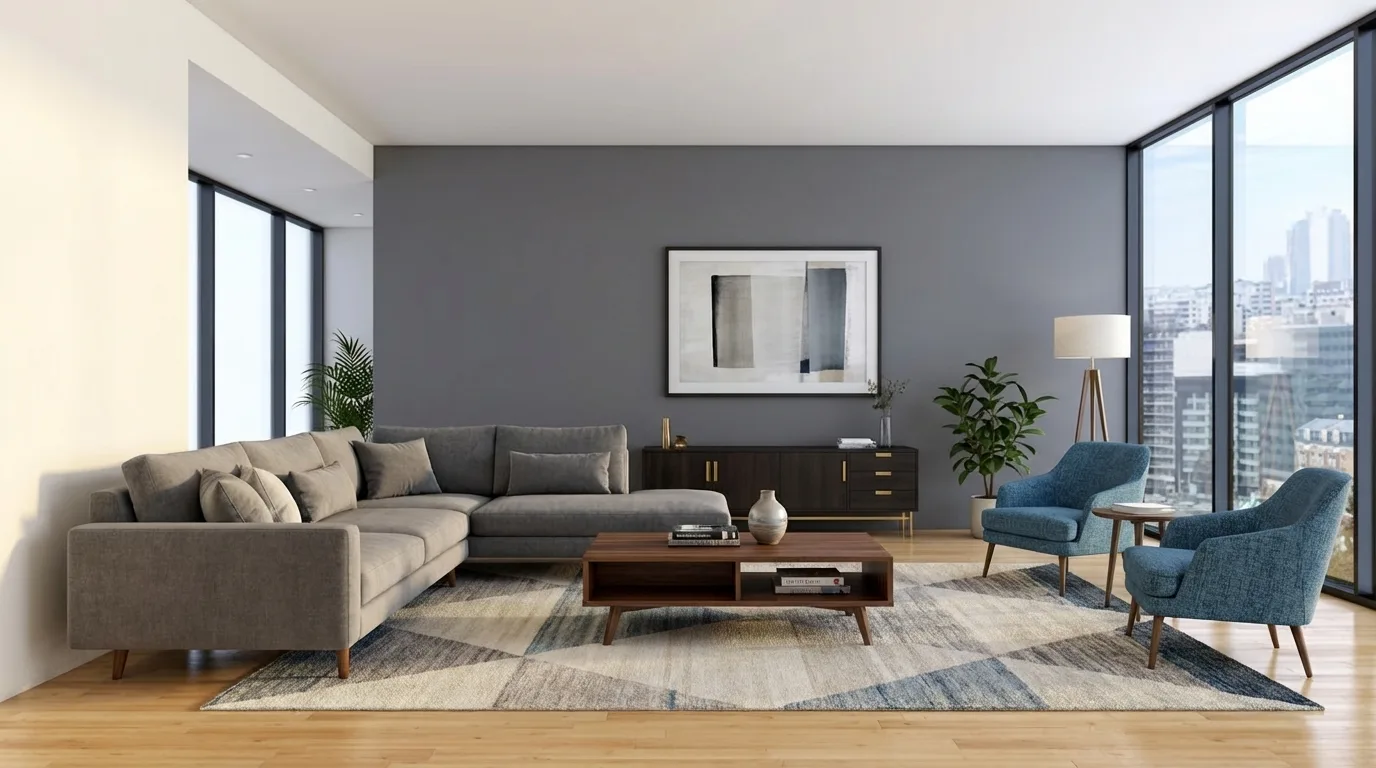
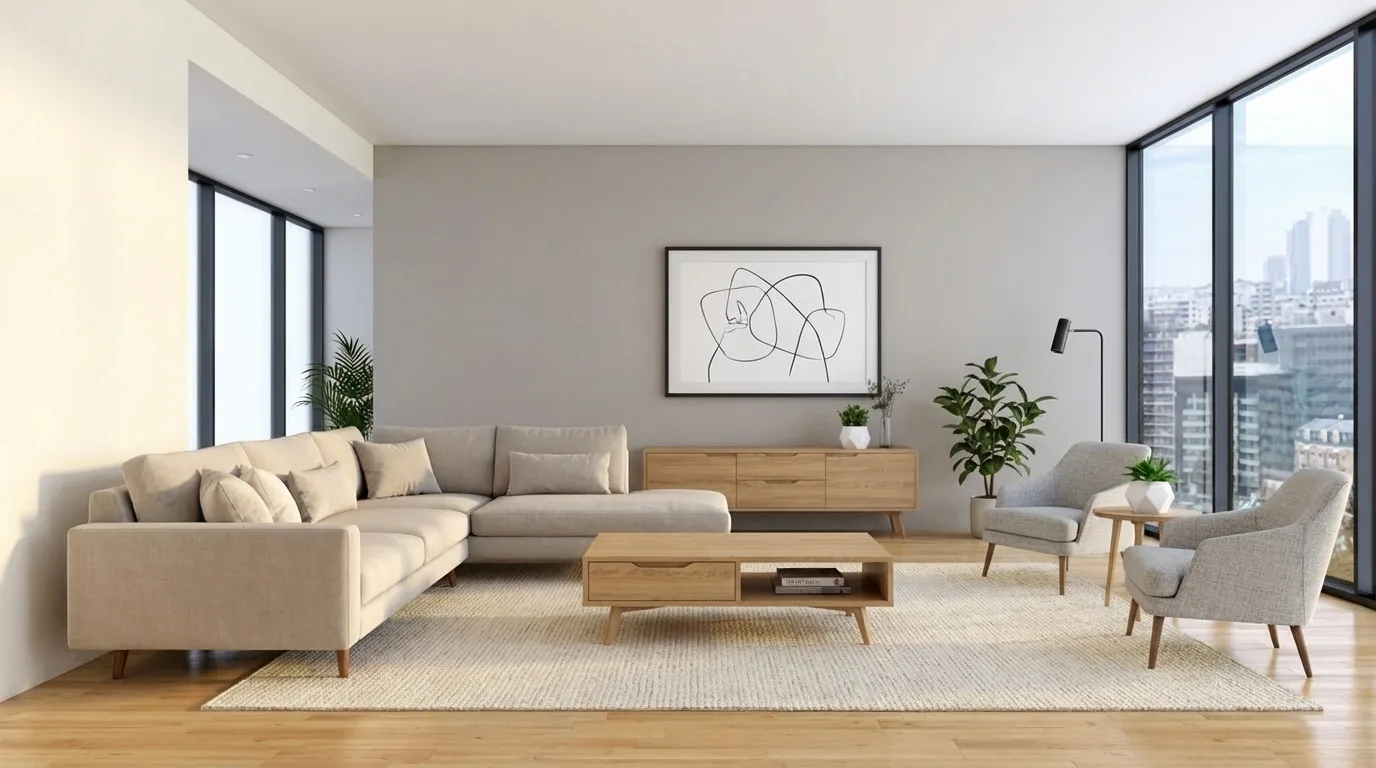
1. Prepare your input
Start with a clear room photo, sketch or exported image of your model. Frame the view around the decision you want to make. If you use SketchUp, export a view as an image; this image-based workflow does not import or edit the underlying SKP model. See the SketchUp rendering workflow.
2. Describe one visual direction
The original generation prompt for this gallery pair is not recorded. The following is a suggested starting prompt for exploring a similar direction, not the prompt that produced the displayed result:
Explore a light, neutral living-room concept from this view. Keep the camera framing, window openings and seating arrangement. Use pale warm walls, light oak for the coffee table and sideboard, neutral woven upholstery and a low-contrast rug. Keep natural daylight and realistic material texture. Do not add text or people.
Adapt the instruction to your source image. Asking to preserve an element is not a guarantee: inspect the output and revise any details that drift.
3. Review the result against the source
- Openings and proportions: compare windows, doors, ceiling lines and furniture scale.
- Unrequested changes: the example also changes the artwork and floor lamp. Decide whether those changes belong in the brief.
- Material intent: check whether the wood tone, upholstery and contrast support the intended direction.
- Image details: inspect reflections, repeated objects and edges at full size.
- Specification: match approved ideas to real products and measured drawings before treating them as final selections.
4. Present the decision
Place the reviewed image beside the source and label what you want the client to approve. For example: “Confirm the light-oak and neutral-upholstery direction; exact furniture selections follow in the sourcing stage.” Use our proposal template and filled example to assemble that presentation.
Try this workflow with your own image, or explore how MoldaSpace AI rendering works.
AI, real-time and offline rendering compared
| Workflow | You start with | Useful for | Main limit |
|---|---|---|---|
| AI image rendering | A photo, sketch or model-view image and instructions | Exploring material, style and atmosphere options | May reinterpret details; does not modify your 3D model |
| Real-time rendering | A prepared 3D scene | Interactive reviews, camera changes and walkthroughs | Scene preparation and hardware affect responsiveness and quality |
| Offline rendering | A prepared 3D scene with materials, lighting and cameras | Controlled stills, render passes and scene-based revisions | Setup and rendering time depend on scene complexity and quality settings |
This table compares workflows, not measured results. The gallery images above demonstrate one image-based concept; they are not outputs from three different renderers.
What makes a render look realistic?
In a scene-based workflow, realism comes from several decisions working together:
- Geometry: plausible proportions, thicknesses, edges and construction details.
- Materials: appropriate texture scale, roughness and reflectivity.
- Lighting: believable direction, exposure, shadows and reflections.
- Camera: framing and perspective that suit the space.
Ray tracing models how light interacts with a scene. Both interactive and offline tools can use ray-tracing techniques, so the label alone does not tell you how long a job will take or how realistic its output will be. Test the scene and settings you actually need.
When to use a traditional renderer
Use a model-based workflow when the deliverable depends on exact geometry, repeated camera views, controlled material assignments or edits that must remain consistent across the scene. You retain control of the model and can regenerate views after changing it.
For an interactive review, evaluate a real-time workflow on your target hardware. For a still image that needs detailed lighting or compositing control, evaluate an offline workflow. Neither label guarantees quality without a well-prepared scene.
When an AI image workflow fits
An AI workflow can help when you need to explore a visual direction from a photo, sketch or model screenshot. It is especially useful for discussing possibilities before investing in detailed scene setup.
The output is an image to review, not a verified model or construction document. Keep the original design files, compare changes carefully and rebuild approved decisions in your design workflow where needed. If exact product geometry must remain unchanged, test that requirement before using AI output in a final presentation.
How to choose photorealistic rendering software
- Define the deliverable. A single concept, a coordinated set of views and an interactive walkthrough have different requirements.
- Check the input path. Distinguish native model support, exchange formats, plugins and image upload.
- Test a representative revision. Change a material or camera and see what stays consistent.
- Record the full effort. Include scene setup, cleanup and revisions, not only the final render time.
- Compare total cost. Include licenses, host applications, hardware, assets and usage-based credits.
For plan limits and free access, see our free architectural visualization software comparison. For a broader tool shortlist, use the architectural rendering software guide.
Common questions
Do I need a powerful computer?
Local scene-based rendering uses your computer's resources, and requirements vary by tool and scene. Cloud image generation moves that processing to a service. Check the tool's requirements and test a representative input on your own setup.
Can I upload a 3D model directly to MoldaSpace?
For the workflow shown here, export a view of your model as an image and upload that image. Keep the model in your modeling application; the resulting visualization does not update its geometry or materials.
Will the suggested prompt reproduce this exact image?
No. It describes a similar visual direction, and results vary by source image and generation. The displayed pair predates this walkthrough, and its original prompt is not recorded.
Create a visual direction from your own source image, review the details, and present the decision with a clear caption.

